Features
Prepare Your Bricks
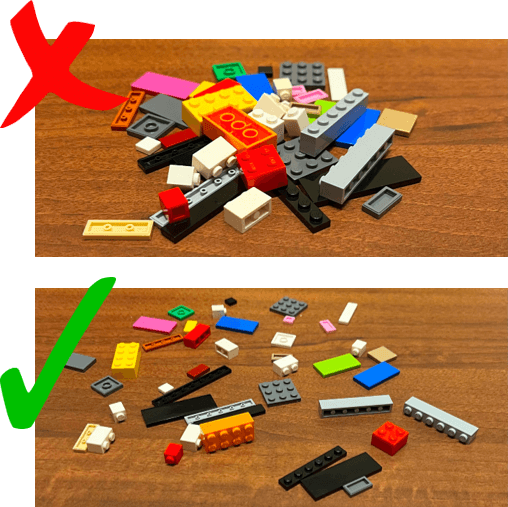
Flatten your bricks on a table without creating piles. Good lighting and clear separation help the detector find pieces more reliably.
Spread Bricks Flat
Avoid piles and overlap so every brick is visible to the camera.
Use Bright Lighting
Your phone cannot see details that are hidden by shadows or poor light.
Keep a Clean Layout
Leave some space between pieces for faster and cleaner detections.
Select the Part
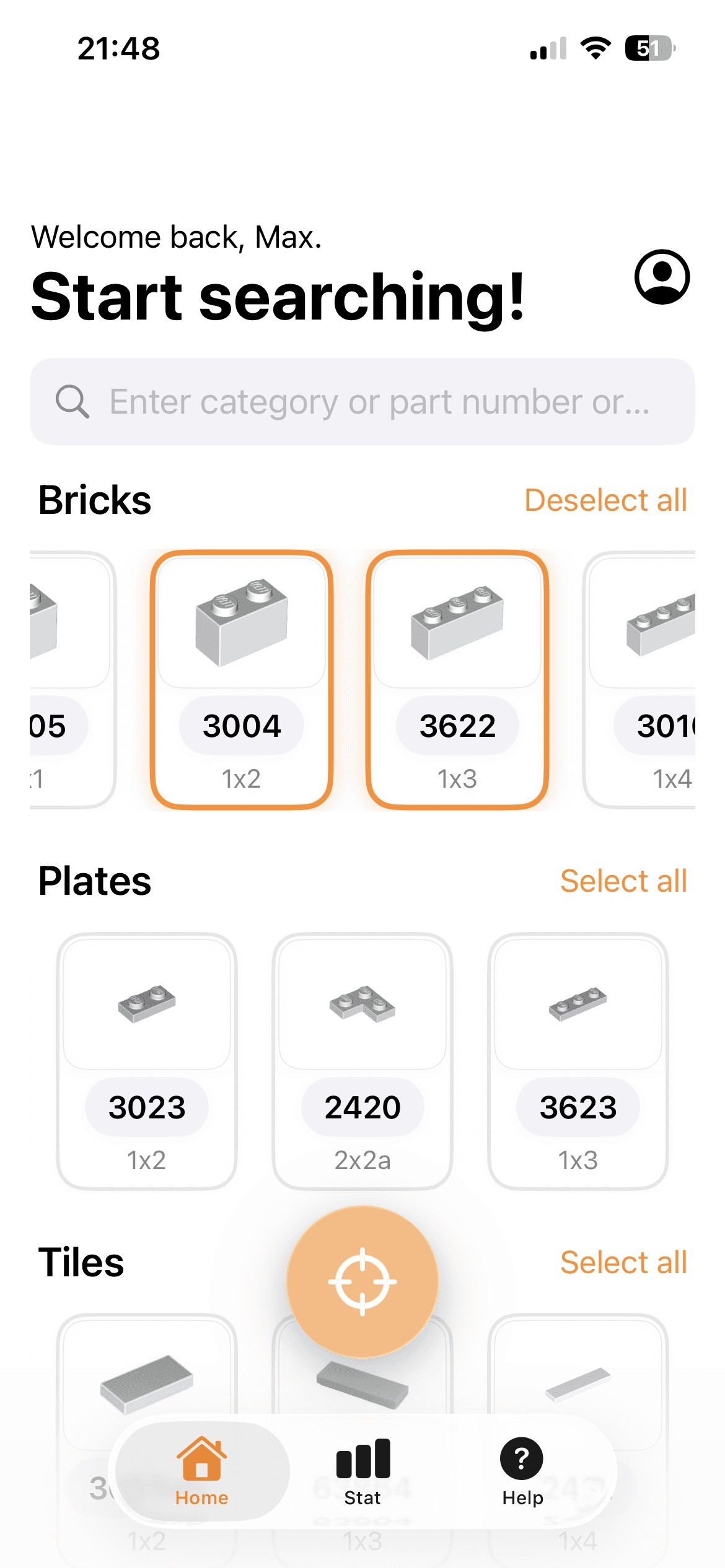
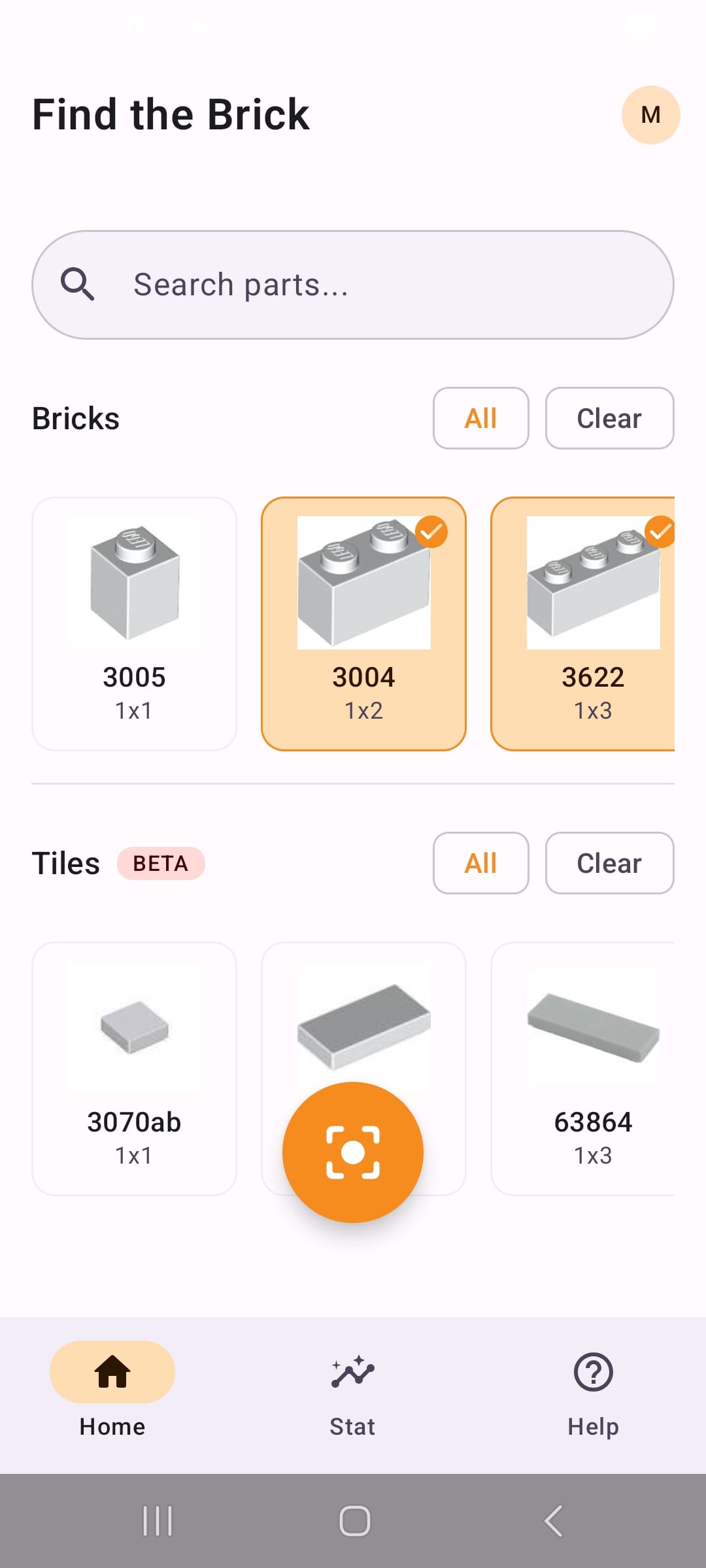
Choose the category and the exact brick you want to find, then press Play to start scanning.
Browse the Category
In the current release you can use the Bricks category.
Choose the Piece
Pick the exact part code you are searching for before scanning.
Press Play
Start live detection in one tap and point your phone to the table.
Scan and Find
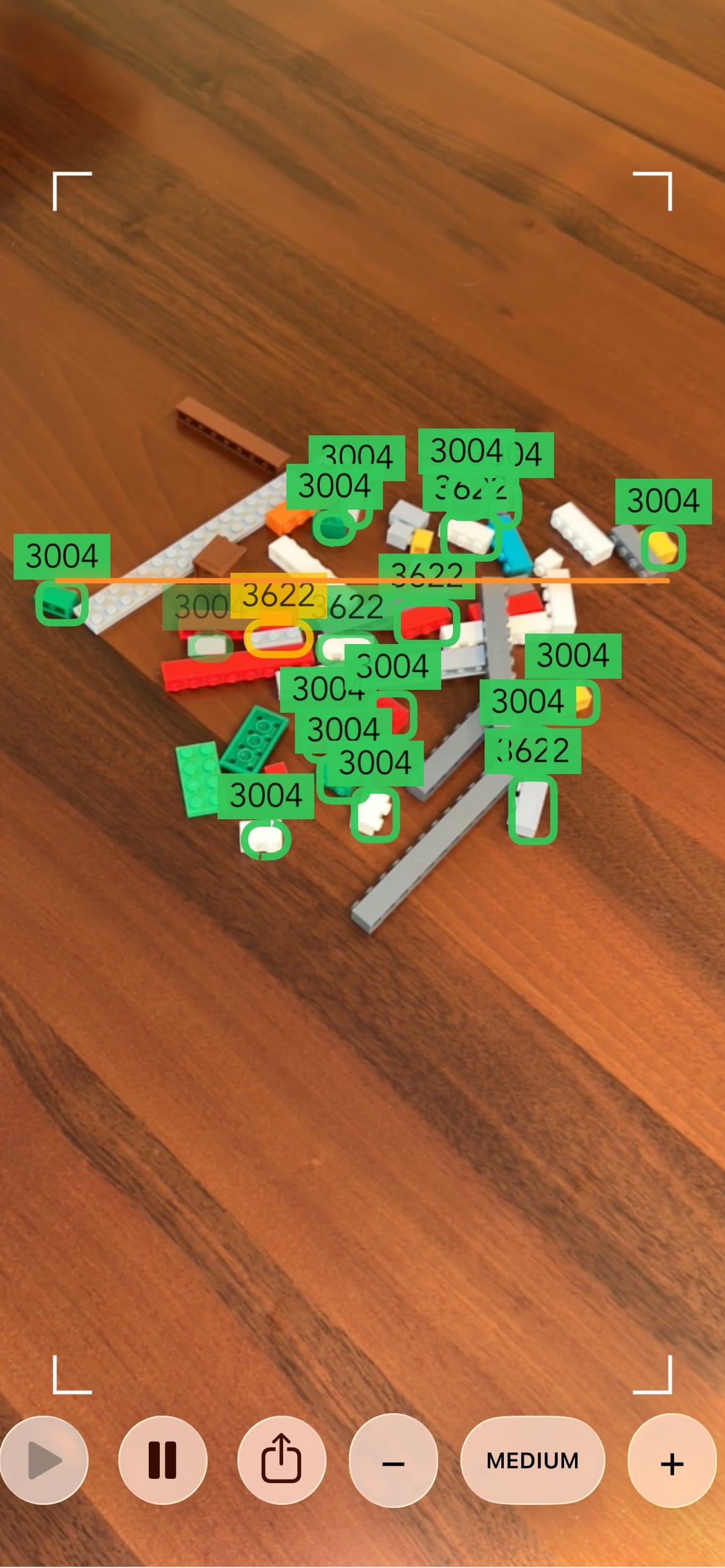
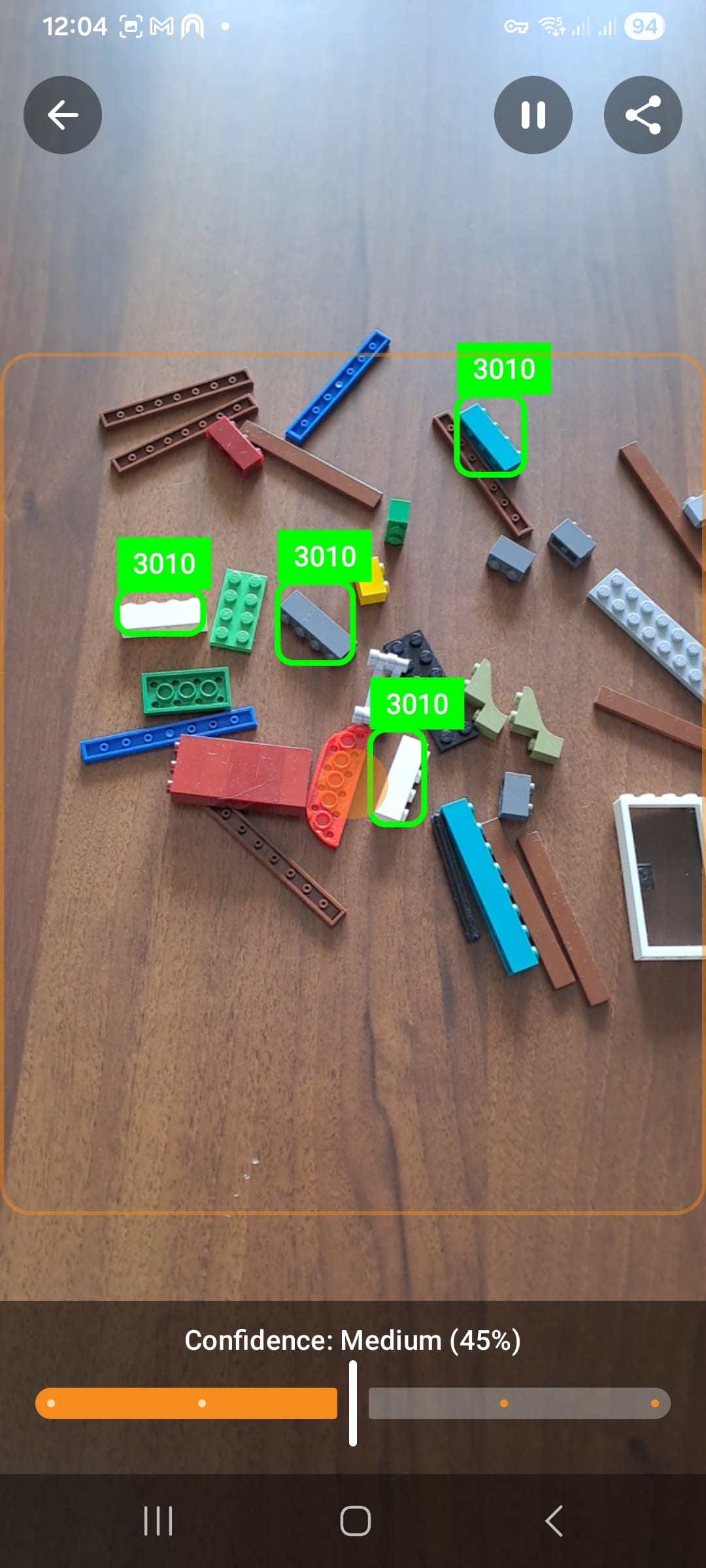
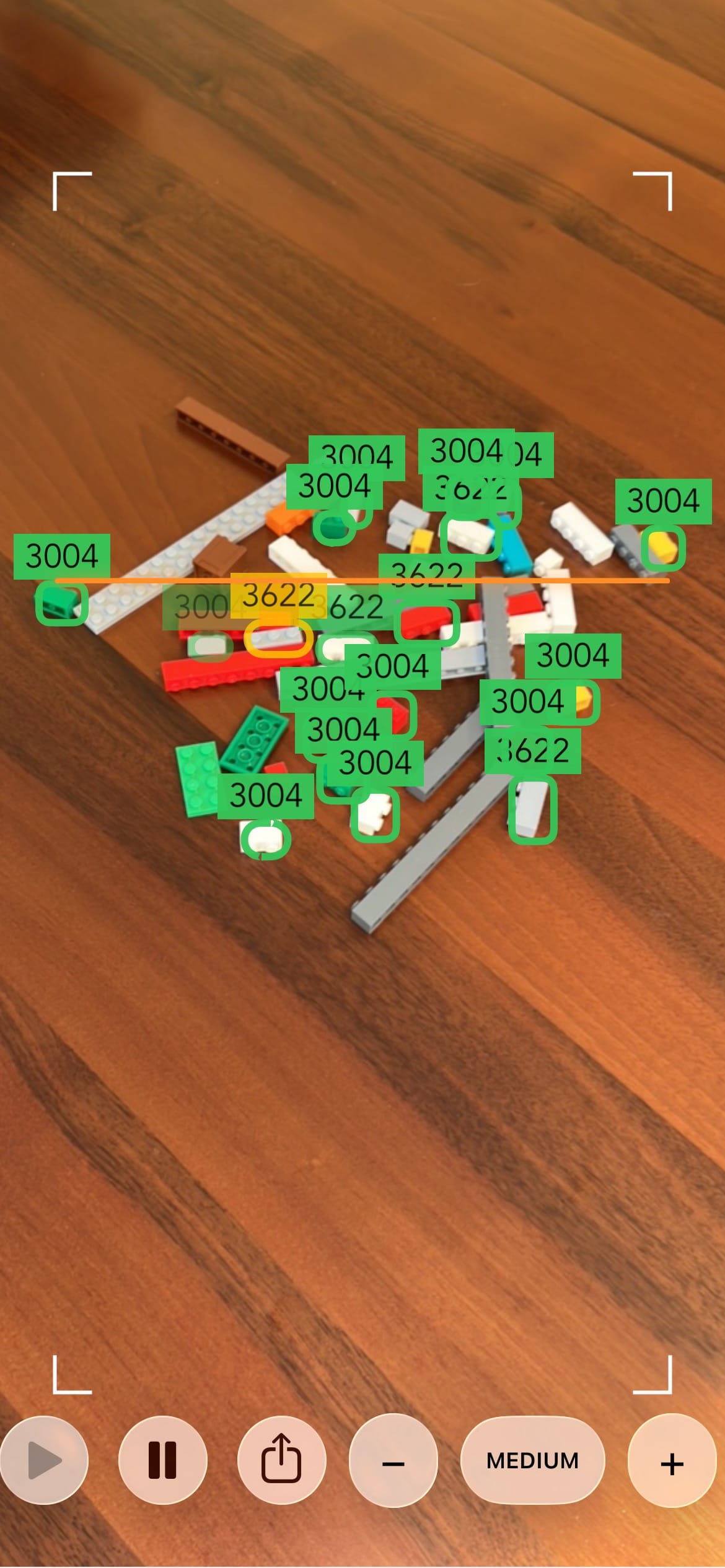
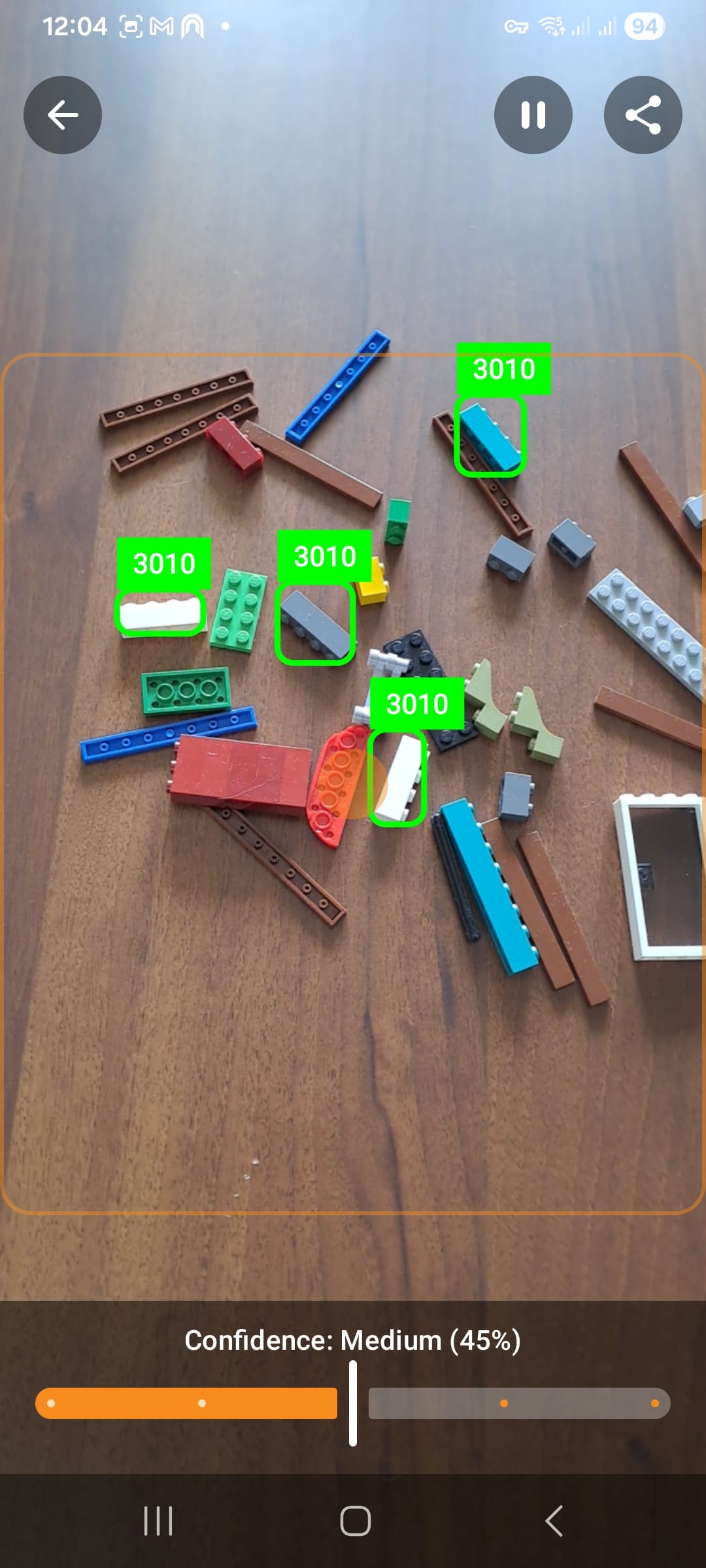
Move your phone around 20-30 cm above the bricks. Matching parts are highlighted in real time on screen.
Keep the Right Distance
Stay around 20-30 cm from the table for stable detection quality.
Let AI Detect
The app processes frames live and searches for your selected part.
See Highlighted Matches
Detected bricks are outlined in green so you can spot them quickly.
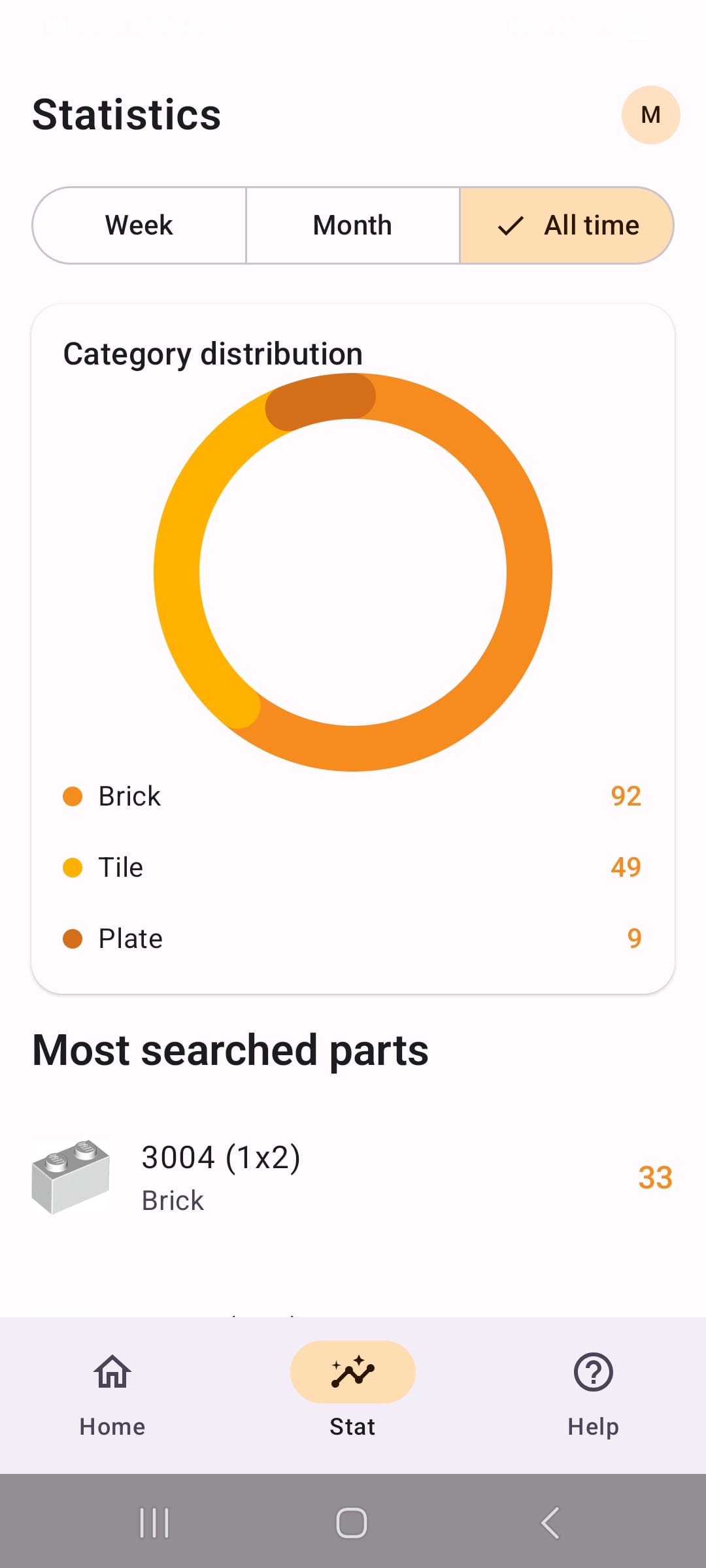
Track Your Statistics
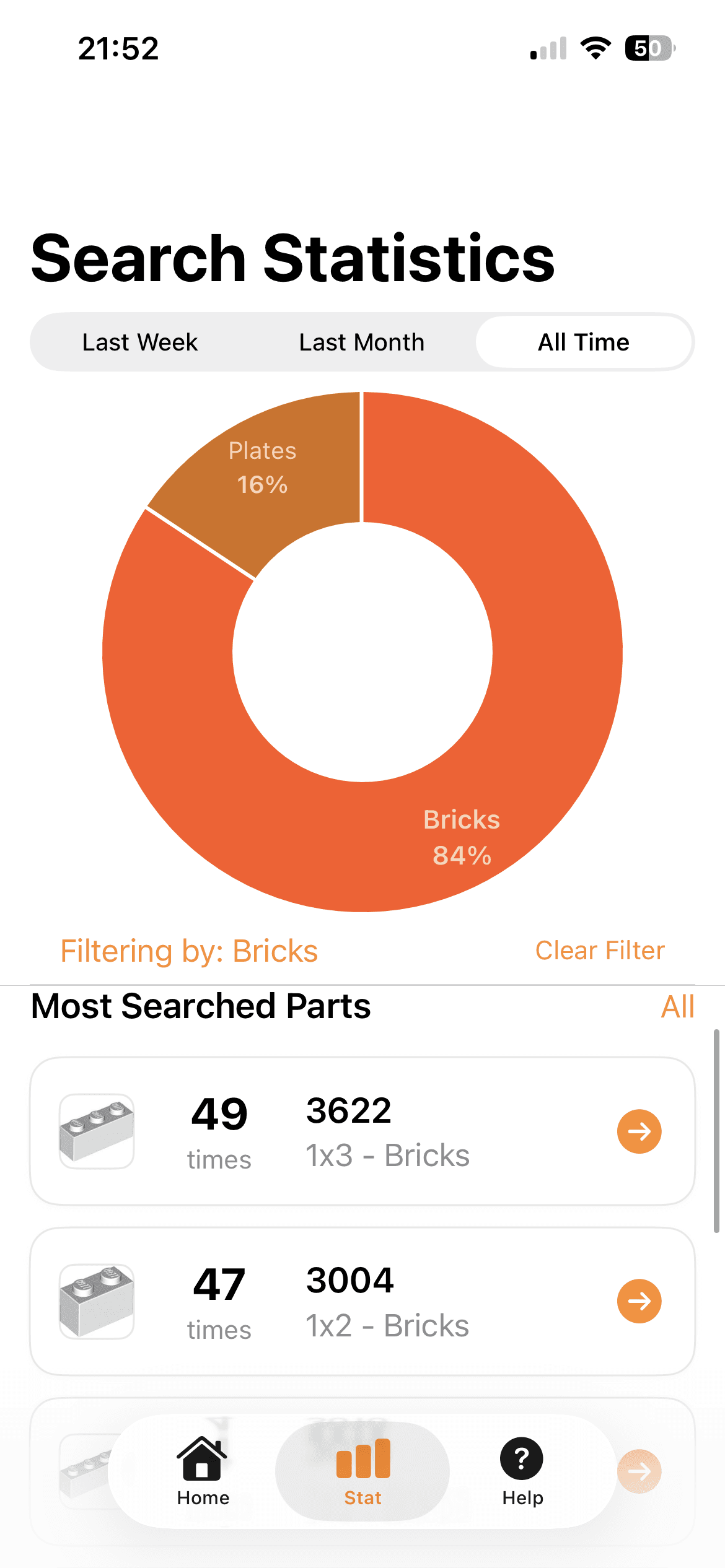
Review and analyze your past searches. Filter by category and time period, then tap a part to return to Home with it already selected and ready to scan.
Filter by Category
Narrow statistics by part category such as Bricks or Plates.
Analyze Over Time
Use Last Week, Last Month, or All Time to see how often you search for each part.
Quick Part Selection
Tap a part from the list to go back to Home with it pre-selected for scanning.
How does Find the Brick work?
Find the Brick uses AI-based object detection with your phone camera to identify and highlight the brick you selected.
Which bricks can the app detect?
In the currently published version, the app focuses on the Bricks category. More part categories are planned in future updates.
Does it work with any brick color?
Yes. Detection is designed to work across different brick colors, as long as the parts are well lit and visible.
Do I need an internet connection to scan?
No. Brick detection runs locally on your device, so you can scan even when you are offline.
Does the app store or share my camera footage?
No. Camera frames are processed on-device for detection and are not uploaded to external servers for this feature.
AI-Powered
Real-time brick detection powered by machine learning on your phone.
100% Offline
Detection runs directly on your device with no internet connection required.
Always Improving
The app and detection algorithms are continuously updated for better accuracy.